Brian's Virtually Useful Blog

Getting your memory savings back on with ESXi and small memory pages

May 9, 2013
Many other VCDX's have posted all the technical details about this before, so this isn't revolutionary, but back in the day's of 32 bit OS's their memory was stored in small 4k pages on the ESXi host.  TPS was great at comparing and colapsing these and generating huge memory savings, typically about 30%.  Now with modern 64 bit OS's, this memory is stored in large 2MB pages by default.  The reason for the large pages is some performance enhancement, and i'm sure in a highly CPU/Memory latency sensitive environment there is some benefit.  However, in every environmnet I've ever worked in, the bottleneck is qty of memory and disk I/O.  TPS does begin to break down the large pages into smaller pages when the system is in the last 6% of memory available, before it starts to swap, this is great, but usually, it's too late to really matter.  I recommend disabling the large pages, and therefore having ESXi store it in the smaller blocks.  You can force this to happen by changing a property on ESXi on the host under advanced "mem" called Mem.AllocGuestLargePage and change it from 1 = large pages enabled to 0 = large pages disabled.  After you reboot the host, your VM's should begin to use the smaller pages and almost immediately begin saving your memory with TPS.

vDS port limits

April 26, 2013
Mnaging the maximum number of ports you can have on a distributed switch has always been difficult for those of us running large clouds.  It appears that with vSphere 5.1 that limit has mostly been removed.  In vSphere 4.0 the limit was 4,096, in 4.1, it was 8,192 but could be modified with PowerCLI to 20,000.  As of vSphere 5.0 the limit was 30k, now in 5.1 that limit is 60k.  However today we discovered the limit in the database is actually 2,147,483,647 (2.1Billion).  I guess I won't have to worry about those errors anymore...

Datastore connectivity issues

March 11, 2013
We have a shared datastore to provide global catalogs to our various ORG's in the vCloud.  For whatever reason several ESX hosts across mulitple clusters were reporting APD (all path's down) when trying to connect to this VNX NFS Export.  After putting those hosts into maintenance mode, everything seemed happy again.   We did quite a bit of digging, it turned out all servers had the same patch level, the NFS export seemed properly configured, we were stumped.  Looking on the Nexus 7k, we saw that one of the ports in the VNX portchannel had a low Rx Power -11.30 dBm, and 75414 CRC errors on RX.  Once we replaced the SFP & Fiber Optic Cable, everything is happy again.

Deploying a VMware vCloud Director (vCD) 5.1 virtual appliance with MS SQL backend

September 19, 2012 · 2 comments

This is a guide for deploying vCloud in a LAB environment, these settings are not the most secure or performant, but this should get you up and running with vCloud 5.1 so you can test and learn it. The easiest way is with the appliance, you don’t need to use a MS SQL DB, but occasionally I need to crack open the DB and I am the most comfortable with that technology.

  1. My Assumptions about what you already have:
    1. One ESXi Host with the following VM’s on it.
      1. Windows with MS SQL DB (I’m using MS SQL 2008 R2)
      2. vShield Manager 5.1 with an IP set (also known as vCloud Networking and Security 5.1)
      3. vSphere 5.1 vCenter (can be the appliance)
      4. Available resources to Deploy vCloud Director Appliance
    2. VCP or equivalent level of knowledge
  2. Prepare your Database (same steps as with non-appliance) 
    1. Again, I am assuming you have MS SQL 2008R2 installed, without a local firewall, or ports opened.
    2. This is a great article, follow it, I will paste the highlights from it below, you can copy/paste these commands into SQL Query analyzer!!

    1)    Configure the database server.
    A database server configured with 16GB of memory, 100GB storage, and 4 CPUs should be adequate for most vCloud Director clusters. (this is for production level quality)
    2)    Specify Mixed Mode authentication during SQL Server setup.
    Windows Authentication is not supported when using SQL Server with vCloud Director.
    3)    Create the database instance.
    The following script creates the database and log files, specifying the proper collation sequence.

    USE [master]
    GO
    CREATE DATABASE [vcloud] ON PRIMARY
    (NAME = N'vcloud', FILENAME = N'C:\vcloud.mdf', SIZE = 100MB, FILEGROWTH = 10% )
    LOG ON
    (NAME = N'vcdb_log', FILENAME = N'C:\vcloud.ldf', SIZE = 1MB, FILEGROWTH = 10%)
    COLLATE Latin1_General_CS_AS
    GO

    The values shown for SIZE are suggestions. You might need to use larger values.
    4)    Set the transaction isolation level.
    The following script sets the database isolation level to READ_COMMITTED_SNAPSHOT.

    USE [vcloud]
    GO
    ALTER DATABASE [vcloud] SET SINGLE_USER WITH ROLLBACK IMMEDIATE;
    ALTER DATABASE [vcloud] SET ALLOW_SNAPSHOT_ISOLATION ON;
    ALTER DATABASE [vcloud] SET READ_COMMITTED_SNAPSHOT ON WITH NO_WAIT;
    ALTER DATABASE [vcloud] SET MULTI_USER;
    GO

    For more about transaction isolation, see http://msdn.microsoft.com/en-us/library/ms173763.aspx.

    5)    Create the vCloud Director database user account.
    The following script creates database user name vcloud with password vcloudpass.

    USE [vcloud]
    GO
    CREATE LOGIN [vcloud] WITH PASSWORD = 'vcloudpass', DEFAULT_DATABASE =[vcloud],

Continue reading →

Deploy a VMware vCloud Director (vCD) 5.1 using RHEL 6.2

September 18, 2012 · 7 comments
This is a down and dirty guide for deploying vCloud in a LAB environment, these settings are not the most secure or performant, but this should get you up and running with vCloud 5.1 so you can test and learn it. The easiest way is with the appliance, but if your like me and want to roll your own, this is the guide.
I am using RHEL 6.2 (Red Hat Enterprise Linux 6 64 bit, Update 2)  because it is the latest version supported by vCloud 5.1, and it already includes java 1.6, which is needed for the certificate generation later (assuming your using self-signed, again this is only for LAB use)

  1. I am assuming you already have:
    1. One ESXi Host with the following VM’s on it.
      1. Windows with MS SQL DB (I’m using MS SQL 2008 R2)
      2. vShield manager
      3. Enough Room to create a vCloud VM
      4. Enough Room to create a vCenter VM (required later, not in this article)
    2. A management machine with SSH (putty) and SCP (WinSCP)
    3. VCP or equivalent level of knowledge
  2. Create a vCD VM, It requires 1GB memory, I like to give it 2GB if possible. 
    1. add two nics (one for http, one for consoleproxy)
    2. Thin provision the default 16GB hard drive
  3. Install RHEL 6.2
    1. Choose standard install options
  4. Post Installation
    1. Create a location to drop files
      1. mkdir /install
    2. Make sure SSH is enabled for ease of management (this is on by default)
    3. Install VMware Tools
      1. Use the KB article
      2. If that doesn’t work (it didn’t for me)
        1. To create a mount point, run:
          1. mkdir /mnt/cdrom
        2. To mount the CDROM, run:
          1. mount /dev/cdrom /mnt/cdrom
        3. go into install directory:
          1. cd /install
          2. find out the VMwareTools Filename ls /mnt/cdrom/VMwareTools* (or just use tab to autocomplete in next step)
        4. Unpack the Tools Tar
          1. tar -xzvf /mnt/cdrom/VMwareTools-9.0.0-782409.tar.gz
          2. after it expands, go into the directory it created cd /vmware-tools-distrib
          3. install tools by taking defaults ./vmware-install.pl
          4. unmount CDrom
            1. umount /mnt/cdrom
          5. Reboot
    4. Setup your IP’s (static IP’s are your friend for this install)
      1. Run “setup” and put them in, sometimes after you configure the IP’s the nics won’t auto start, if so Edit /etc/sysconfig/network-scripts/ifcfg-eth0 and make sure it says

Continue reading →

Disable Fibre Channel HBA so I can connect to another Fabric

September 11, 2012 · 1 comment
We are doing a forklift upgrade of our servers, in order to do so, I would like to connect my esx hosts to both fabrics for a while so I can transfer the VM's over that network and not the front end ethernet network.  Because I don't want to make changes to the legacy Fibre, and I don't want to connect the fabrics more than I must, I will disconnect the redundant fibre cable from each ESX host and connect it to the new fibre.  Here are my steps.
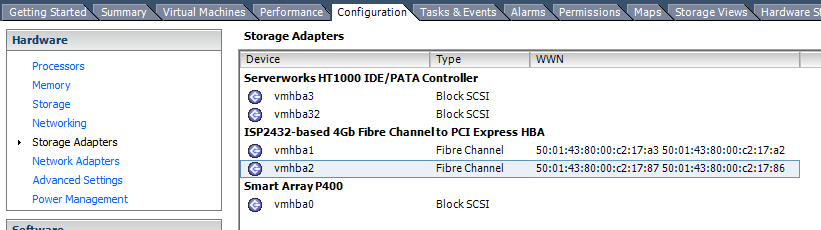
First go into vcenter, identify the correct HBA WWN, I just use the last octet, so I want to re-use "86", so that is the HBA I am going to disconnect from the existing Fibre.


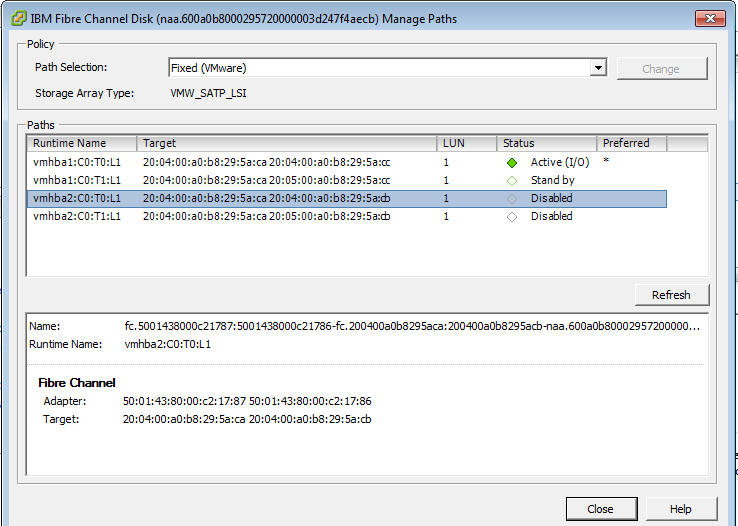
Then Go into the Properties of each Datastore and click "Manage Paths", change the path selection policy to "Fixed" (so we can control what path the Host is using to access the current storage), Click "Change", click the status of the current path you wish to keep (not using 86), and click Preferred.  After that, click the paths that 86 is using, and choose Disable.  It should then look something like below, you can see the Adapter listed after the Path is chosen.


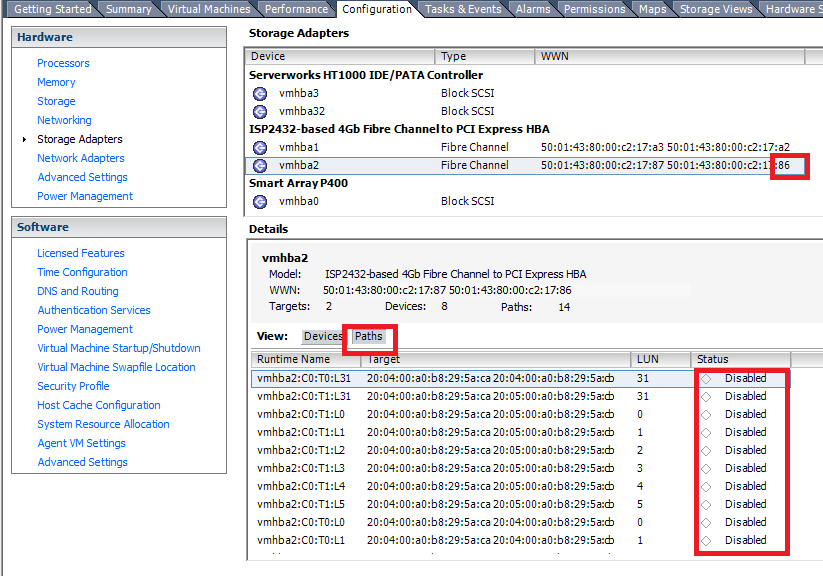
Click Close and repeat for all datastores.  You also can verify/do this work from the Configuration/Storage Adapter page, which will look something like below, Note that we are looking at HBA2 (86), Under "Paths" and you can see status is Disabled.


After disabling all of the paths under each datastore, you may still have some paths left, those are just the connections to the array, but not actually a connection to a LUN.  You can disable those if you choose, I do because I try to never leave anything to chance.  At this point this HBA is no longer in use and is ready to be re-used to connect to the new Fibre.

In my case, I am using an HP server with HBA's installed into PCIe slots.  My question is, which HBA is mapped to which PCIe Slot (I don't want to disconnect the wrong one since I just removed redundancy).  I am using ESXi 5.x, so I have enabled SSH for troubleshooting.  I tried logging into iLo, however it did not have PCIe slot card information, so I decided to go right twards the horses mouth so to speak and have SSH'd into my server and ran the following command:
esxcli hardware pci list
but that gave me alot of information I couldn't use, so then I tried:
lspci
which gave me:
000:067:00.0 Serial bus controller: QLogic Corp ISP2432-based 4Gb Fibre Channel to PCI Express HBA [vmhba1]
000:070:00.0 Serial bus controller: QLogic Corp ISP2432-based 4Gb Fibre Channel to PCI Express HBA [vmhba2]
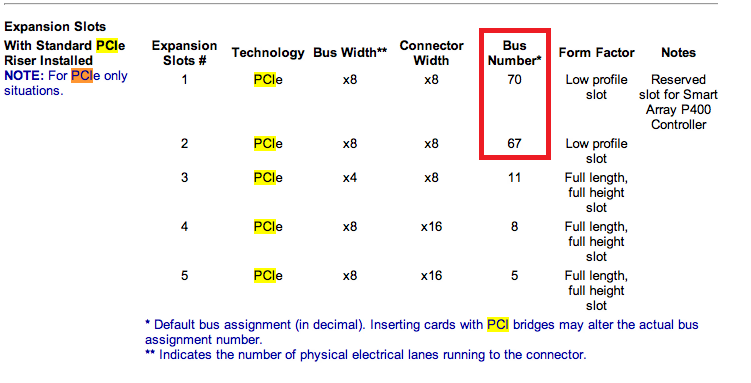
This is perfect information, because the HP Quickspecs for the DL385G2 has the following info:
ss4
You can see Expansion Slot #1 is Bus Number 70, which from lspci above is vmhba2, and Expansion Slot #2 is Bus Number 67, which is vmhba1
What’s new Guides for new products launched at VMworld 2012

September 7, 2012

If your like me, you always want to know what changed in the latest version, so here is a list of links to all the new PDF’s

vSphere 5.1 (Marketing Overview)

VMware vCloud Suite (Marketing Overview)

vSphere 5.1 vCenter

vSphere 5.1 Performance

vSphere 5.1 Storage

vSphere 5.1 Networking

vSphere 5.1 Platform

vSphere 5.1 Storage Appliance

vCloud Director 5.1

vSphere Replication

vSphere Data Protection

VMware vCenter Configuration Manager 5.5.1

VMware vCenter Operations Manager 5.0.3

VMware vCloud® Networking and Security Overview

VMware vCloud Architecture Toolkit 3.0 (soon)

I’m sure there are more, if you know of any more, let me know and I’ll add it.

Lab Manager 4 runs out of ports on your vDS

August 6, 2012

If you see an Error such as:

Unable to deploy virtual machines in resource pool "LBM4".

  • Error deploying configuration networks.
    • dvs.VmwareDistributedVirtualSwitch.addPortgroups task on AddDVPortgroup_Task failed: fault.LimitExceeded.summary
      • The numPorts value : 8215 in spec exceeded maxPorts 8192.

Even though the vDS (VMware Distributed Switch) maximum went up from 4,096 to 20,000 in vSphere 4.1, the vDS won’t be able to go over 8192 unless you manually modify the vDS.  You would have already upgraded the vDS from a 4.0 to a 4.1 to have a number this high.

Here is the VMware KB that tells you how to manually increase the size of your vDS

http://kb.vmware.com/selfservice/microsites/search.do?language=en_US&cmd=displayKC&externalId=1038193